
Most AI talking video is built in two steps. You generate a clip, then run it through a separate lip-sync tool to glue a voice onto the face. Every seam in that chain is somewhere the result can go wrong.
MiniMax H3 removes the chain. The picture and the sound are generated together in a single pass, so the mouth moves because the voice exists — not because a second model pushed it into place afterwards. This guide covers how that works, the exact steps to make talking video on this site, and what we found when we tested it against the two failure modes people report most.
The Core Idea
Here's the principle in one line:
The mouth and the voice come from the same generation. Your job is to specify the voice, not to fix the mouth.
That single fact changes how you prompt. On a two-step pipeline, you write the visuals and worry about audio later. On H3, unspecified audio is not "no audio" — the model generates a soundtrack no matter what. Leave it blank and it invents one, often badly. The most commonly reported first-week failure is exactly this: people wrote a prompt with no audio direction and got speech-like noise back.
So the rule is simple. You are always directing the sound. Your only choice is whether you do it on purpose.
Why Lip Sync Usually Breaks
Understanding the failure helps you avoid it. In a standard pipeline, a video model generates a face with no knowledge of what will be said. A separate lip-sync model then reshapes the mouth to match an audio track it was handed. Two models, two ideas of timing, and a face that was never built to say those words.
That's why traditional AI dubbing often looks slightly off even when it's technically synced — the mouth is being corrected rather than performing.
H3's approach avoids that by never separating the two. It generates video and 32 kHz stereo audio jointly, which means dialogue, room tone, and mouth movement all come out of one process with one sense of timing.
Make a Talking Video with MiniMax H3
How to Make Talking Video Here: Step by Step
These steps map to what the generator on this site actually does, so you can follow them straight through.
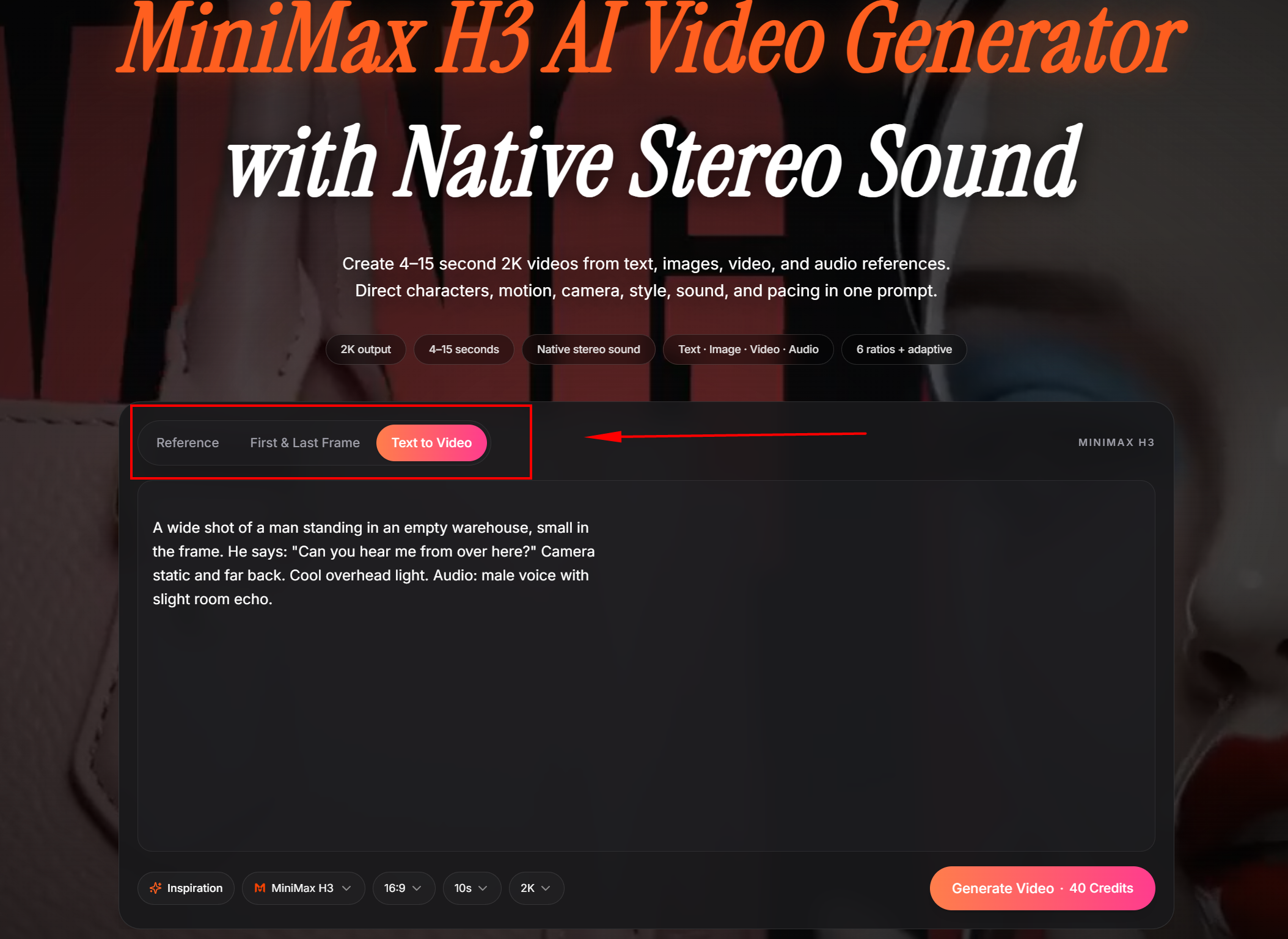
Step 1 — Choose your mode.
Use Text to Video if you're describing the person and scene entirely in words. Use Image to Video or Subject Reference if you have a photo of the person who should be speaking. For a MiniMax H3 consistent character across several clips, use a reference image and reuse the same one every time — identity lives in the reference file, not in your prose.
Step 2 — Write the scene before the speech.
Give the model a beat of visual context first: who is here, where they are, what they're doing. A prompt that opens with dialogue leaves the model no time to establish the shot.
Step 3 — Write the dialogue exactly.
Put the spoken line in quotation marks and say who says it. This is the heart of a good MiniMax H3 dialogue prompt:
A man in a grey sweater sits in a home office looking at the
camera. He says clearly: "This clip took fifteen seconds to
make." Static medium close-up, warm lamp light from the side.
Audio: clear male voice, quiet room tone, no music.
Note the structure: voice description sits outside the quotes, the exact words sit inside them. Don't paraphrase your own line — write it the way you want it said.
Step 4 — Specify the whole soundscape.
Name the voice, then name what else you want to hear, then name what you don't. "Quiet room tone, no music" is short and does real work. Since the model always generates audio, silence on your part is not silence in the output.
Step 5 — Keep the camera calm while talking.
A locked or gentle camera protects the performance. Big moves during dialogue give the model two hard problems at once.
Step 6 — Set length and resolution in the controls.
Duration and aspect ratio belong in the on-screen settings, not the prompt text.
Step 7 — Generate, then change one thing.
If something's off, adjust the single element that's wrong and run again. Changing three things at once tells you nothing about which one mattered.
What We Found Testing It
We ran three tests aimed at the two failure modes people report most often: long dialogue breaking down, and faces distorting in wide shots. All three were generated at 2K, and we kept the first result from each — no retries, no cherry-picking.
Test 1: Short line | Test 2: Long line | Test 3: Wide shot | |
|---|---|---|---|
Mode | Text to Video | Text to Video | Text to Video |
Duration | 10s, 2K | 2K | 2K |
Generation time | 4 minutes | 5 minutes | 5 minutes |
Credits | 40 | 40 | 40 |
Attempts to usable | 1 | 1 | 1 |
Lip sync | Matched | Held throughout | Face too small to judge |
Voice quality | 8/10 | Normal pace | — |
Unwanted audio | None | None | — |
Result | Clean | Finished the line, no overrun | Slight distortion |
Three findings came out of this, and one of them surprised us.
Finding 1: Short lines are solid
The baseline test worked on the first attempt. The lip sync matched, the voice sounded natural — we'd put it around 8 out of 10 — and nothing extra appeared in the audio. We asked for no music and got no music.
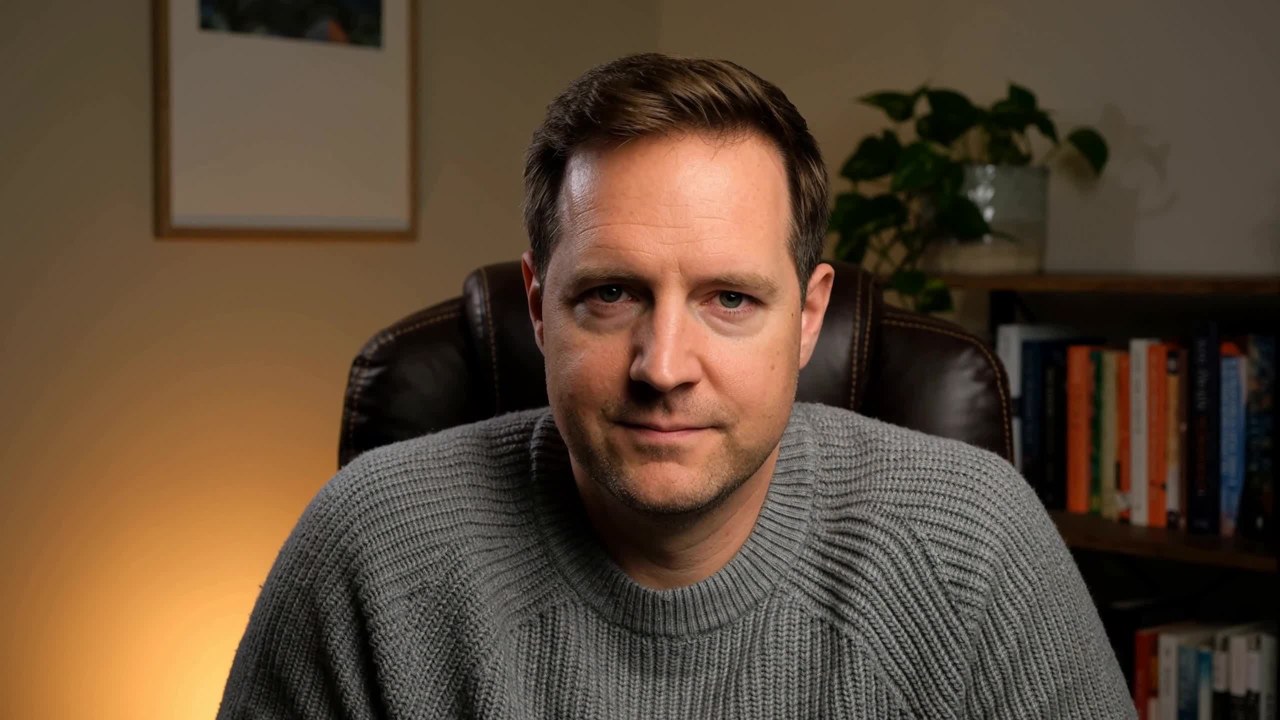
One detail worth calling out because it's a common tell in AI video: the mouth closed properly when the line ended. Plenty of models keep the jaw moving after the words stop. This didn't.
Finding 2: The long line didn't break
This is the surprising one. The widely reported limitation is that dialogue longer than roughly one or two sentences per five seconds produces rushed delivery, audio that runs past the final frame, or strained lip movement.
We deliberately wrote an overlong line to trigger that. It didn't happen. The pace stayed normal, the line finished inside the clip, the audio didn't overrun the picture, and the lip movement held for the full duration with no drift in the back half. First attempt.
We're not claiming the reported limit doesn't exist — one test on one prompt isn't a benchmark, and a genuinely extreme line would likely still break. But on a line long enough that we expected trouble, we didn't find any. If you've been keeping your dialogue artificially short because of what you read, it's worth testing your actual line before assuming you can't use it.
Finding 3: Wide shots are a real problem, but not the one people describe
The MiniMax H3 face distortion issue in wide shots is widely discussed, usually described as faces mushing or breaking badly at distance.
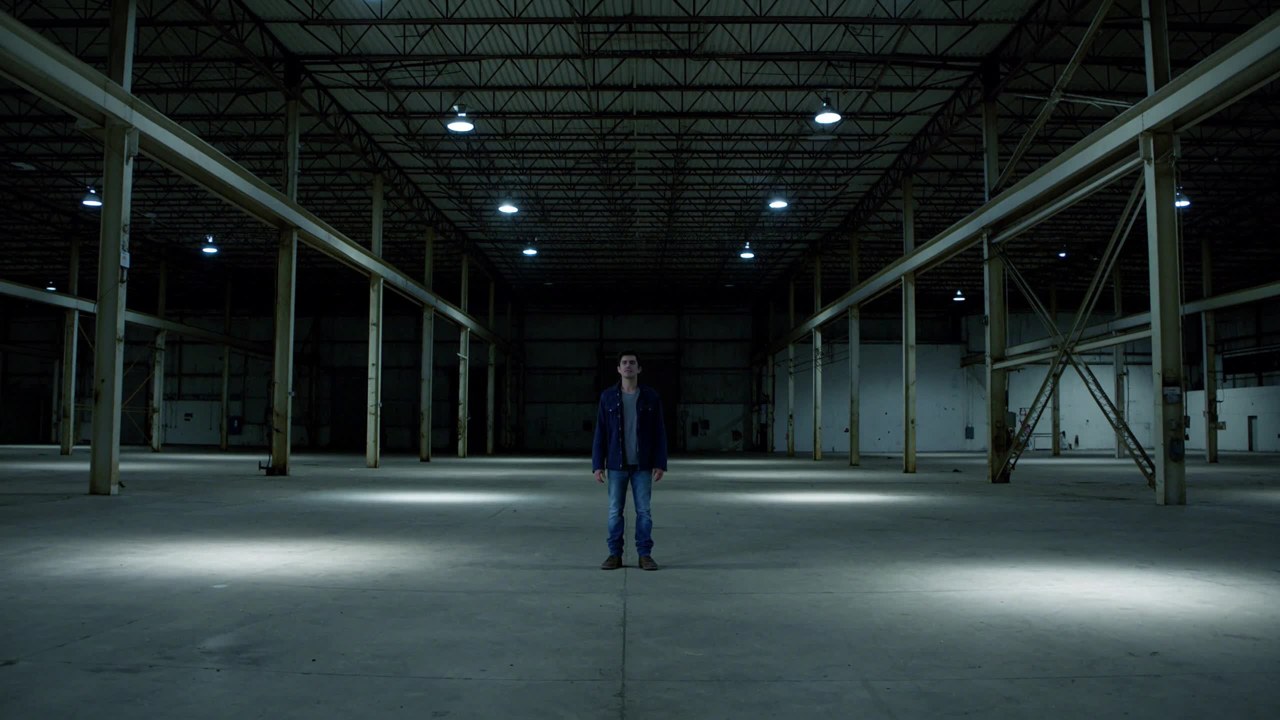
Our result was more specific than that. The distortion was slight — not the dramatic breakdown some reports suggest. But the practical problem was worse than distortion: the mouth was too small to read at all. The subject sat far enough back that the lip sync became invisible, which makes the whole feature pointless in that framing.
The numbers make it concrete. Both clips were generated at the same 2K resolution, but the face occupied roughly 512×648 pixels in the medium shot and only about 79×70 pixels in the wide shot. Here they are cropped and scaled to the same display size:
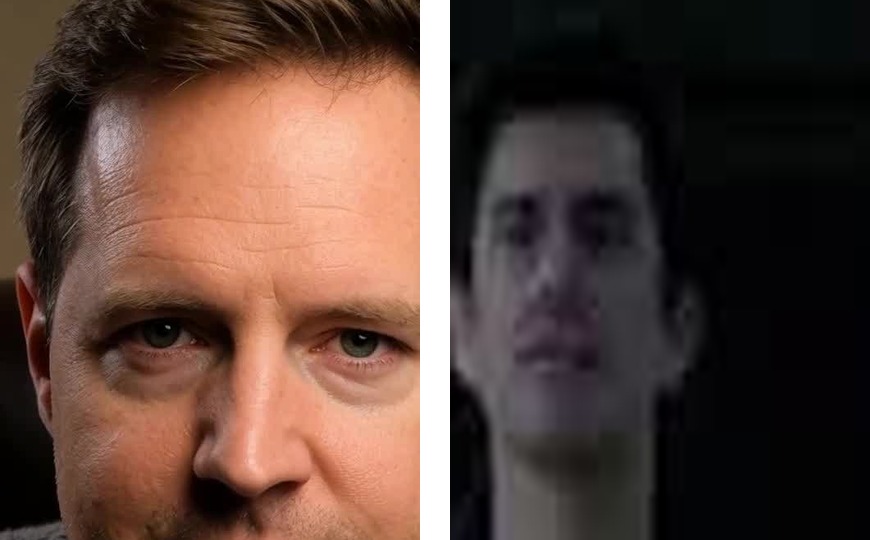
On the left, every feature is legible — you can watch the mouth form words. On the right, the same 2K generation gives you a face that's already breaking into blocks at this magnification. The sync may well be perfect; you simply can't see it.
So the real rule isn't "wide shots destroy faces." It's simpler: if the dialogue matters, don't shoot it wide. Not because the face falls apart, but because nobody can see the mouth. Frame speaking subjects at medium or closer, and use wide shots for establishing, not for talking.
Common Problems and Fixes
The audio sounds invented or wrong. You didn't specify it. Add an audio line naming the voice, the ambience, and what to exclude. This is the single most common mistake.
Music appeared and you didn't want it. Say so explicitly — "no music" — rather than assuming silence is the default.
The mouth keeps moving after the line ends. Give the shot something to do after the dialogue. A closing beat — a small gesture, a look away — gives the model an ending instead of dead air.
The lips don't match the words. Usually the audio reference and the visual are describing different timings. Simplify: one voice, one line, one clear speaker.
Model added camera moves you didn't ask for. There's no negative prompt field here, so write it as a sentence: "camera remains completely static throughout."
The output ignores part of your prompt. When people say the model is not following the prompt, the cause is usually that the prompt asked for too much at once. Fifteen seconds holds one clear beat. A walk, a sit, a line of dialogue, and a reaction is four beats competing for the same time. Cut to one.
For more on the prompt structure behind all of this, see our MiniMax H3 prompt guide.
When to Use This
Talking video with native audio suits some jobs better than others.
Good fits: spokesperson clips for social, product explainers where someone introduces a feature, founder or team intro videos, short ad reads, and multilingual versions of the same script.
Less suited: anything longer than 15 seconds in one take, wide establishing shots with dialogue, or projects needing an exact pre-recorded voiceover — for that, generate the visual and dub separately.
The Checklist
Before you generate a talking clip:
Reference image attached if the person must stay consistent
A beat of visual setup before anyone speaks
Dialogue written exactly, inside quotation marks
Speaker identified, with a short voice description
Ambience named, and unwanted sound excluded
Camera locked or gentle during speech
Subject framed medium or closer
Duration and aspect ratio set in the controls
That covers everything the model needs. If you want to try it now, you can generate talking video directly on our MiniMax H3 platform with no setup.
Frequently Asked Questions
Does MiniMax H3 do lip sync natively? Yes. Video and 32 kHz stereo audio are generated together in one pass, so the mouth movement and the voice come from the same process. There's no separate lip-sync step and no dubbing stage.
How accurate is the lip sync? In our testing, a short line matched cleanly on the first attempt, with the mouth closing properly when the line ended. A deliberately long line also held sync for the full clip without drifting. Framing matters more than length — at medium distance or closer it reads well.
Will a long line of dialogue break the sync? It's widely reported that it can, but our test didn't reproduce it. Our overlong line kept a normal pace, finished inside the clip, and stayed in sync throughout. Test your actual line rather than assuming — one test isn't a benchmark, but the limit may be looser than you've read.
Why do faces look wrong in wide shots? Distance, not model failure. In our test both clips were 2K, but the face got roughly 512×648 pixels in the medium shot versus about 79×70 in the wide shot. The distortion was only slight — the real problem is that the mouth becomes unreadable. Frame speaking subjects medium or closer.
Why did the model generate audio I didn't ask for? Because it always generates audio. Unspecified isn't silent — it just means the model chose for you. Always include an audio line naming the voice, the ambience, and anything to exclude.
How do I keep the same person across several talking clips? Use a reference image as the identity anchor and supply the same one on every generation. Identity lives in the reference file; the prompt handles scene, action, and delivery.
What should I do if the result ignores my instructions? Reduce the number of things you're asking for. One clear beat per clip works; four competing actions in fifteen seconds doesn't. Then change one variable at a time so you learn which one mattered.
Final Thoughts
The thing that makes H3's approach to talking video work is that there's no seam to go wrong — the mouth and the voice were never separate to begin with. In our tests, short and long lines both held sync on the first attempt, and the model behaved better on long dialogue than its reputation suggests. The genuine constraint we found wasn't sync quality at all, it was framing: shoot speaking subjects wide and the mouth becomes unreadable no matter how good the sync is. Specify your audio, keep the camera calm, frame close enough to see the mouth, and the rest takes care of itself. Want to make your first talking clip?