MiniMax H3 LogoMiniMax H3

VIDEO-TO-VIDEO AI · FREE STARTER CREDITS

Transform Videos with MiniMax H3Free to Try Online

Upload a source clip, keep the motion and timing that matter, and direct a new visual style with a focused AI prompt. Start with available free credits.

Images0/9up to 9
Videos0/3≤3 · 15s
Audio0/3≤3
Prompt
Upload up to 9 images, 3 videos, and 3 audio clips (12 references total). Use @Image, @Video, or @Audio in your prompt to identify each reference.
InspirationMiniMax H316:95s2K
Try Video to Video Free

Free starter credits may be subject to account, generation, and export limits.

Source and generated result

See What MiniMax H3 Keeps — and What You Can Change

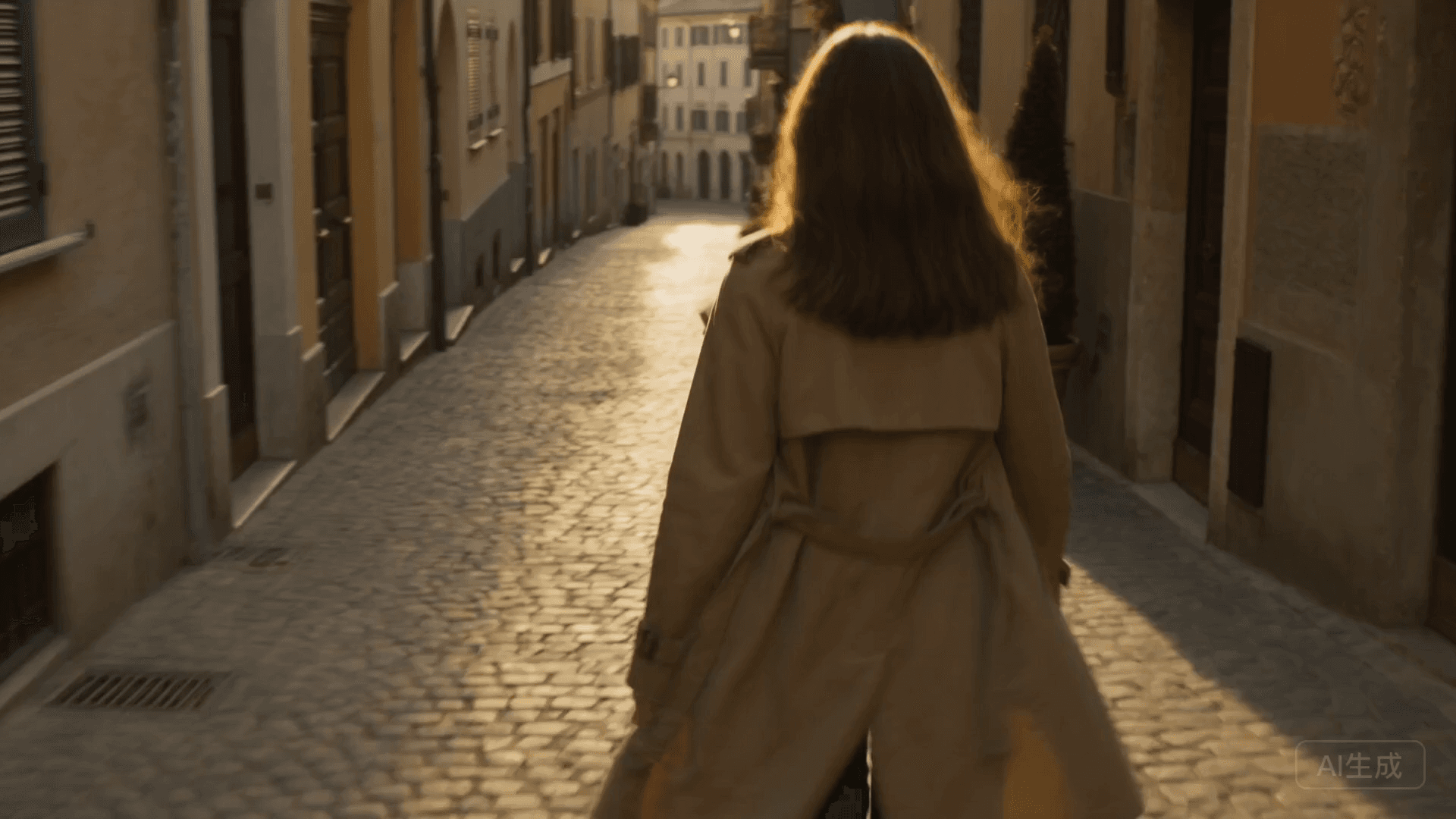
Use the source video as motion evidence, then change the environment, treatment, lighting, or production style. Compare the uploaded clip with the generated result before you create your own.

Source video

Source video used as motion evidence for a MiniMax H3 video-to-video example

Generated output

Generated MiniMax H3 video-to-video output
Preserved
walking pace and handheld camera rhythm
Changed
location, lighting, wardrobe, and atmosphere
Full prompt

Use the uploaded clip as the motion reference. Preserve the walking pace, shoulder turn, and handheld camera rhythm. Reimagine the scene as a rain-lit night market with reflective pavement, focused product lighting, subtle crowd ambience, and a clean ending pose.

A 3-step workflow

How to Use MiniMax H3 Video to Video in 3 Steps

01

Upload a source video

Choose a short clip with one clear action, readable subject edges, and stable enough framing to guide the new result.

02

Describe what stays and what changes

Name the motion, timing, or camera behavior to preserve. Then describe the new scene, style, lighting, and sound.

03

Generate and review the result

Create the transformed clip, then check motion, faces, objects, text, and scene continuity before refining the prompt.

Video-to-video capabilities

Restyle Existing Footage Without Starting from Zero

01

Motion-led generation

Use an uploaded clip to guide action timing, pose changes, and camera rhythm.

02

Prompt-based restyling

Direct a new environment, surface treatment, lighting setup, or production look in plain language.

03

Focused creative control

Separate what should remain recognizable from the parts you want MiniMax H3 to reinterpret.

04

Fast iteration from proven footage

Start from an existing performance or camera move instead of rebuilding the shot from a blank prompt.

Restyle prompt anatomy

Write a Better MiniMax H3 Video-to-Video Prompt

Video-to-video is generative, not frame-locked rotoscoping. Ask the model to preserve motion or rhythm instead of requiring every source pixel to remain unchanged.

Prompt formula

Source motion + details to preserve + new visual treatment + scene change + camera emphasis + sound

Example prompt

Use the uploaded clip as the motion reference. Preserve the walking pace, shoulder turn, and handheld camera rhythm. Reimagine the scene as a rain-lit night market with reflective pavement, focused product lighting, subtle crowd ambience, and a clean ending pose.

Read the MiniMax H3 prompt guide

Do not ask for every frame to match

This is generative video-to-video, not traditional frame-perfect rotoscoping. Ask for motion, rhythm, or camera behavior rather than pixel-level duplication.

Use one transformation direction

A source clip plus a full style change plus a new subject plus a new environment can conflict. Keep the first test focused on one major change.

Protect timing before aesthetics

If the clip is valuable because of choreography, action timing, or camera rhythm, write those constraints before color, wardrobe, or background style.

Creator and marketing workflows

Video-to-Video Workflows for Creators and Marketing Teams

Campaign variations

turn one approved camera move into several visual directions for concept review.

Product video restyling

retain a product movement or reveal while testing a different environment and lighting treatment.

Dance and performance concepts

use choreography and timing as the motion reference for a new visual world.

Previsualization

transform rough footage into a clearer creative reference before full production.

Free credits and pricing

Start with Free Credits, Then Choose the Pack You Need

Try the video-to-video workflow with available starter credits. Before generating, the tool shows the current settings and credit requirement. If you need more generations, compare the one-time credit packs below.

Choose by source asset

Choose the Right MiniMax H3 Workflow for Your Source

ModeStart withUse when
Video to VideoExisting videoMotion or camera rhythm should guide the result
Image to VideoStill imageA known frame should become animated
Reference to VideoSubject referencesIdentity consistency matters more than source motion
Text to VideoPrompt onlyYou want blank-slate generation

Clear answers

MiniMax H3 Video-to-Video Questions, Answered

Is MiniMax H3 video to video free to use?

You can try the workflow with the free starter credits available on this site. Current generation requirements and any account or export limits are shown before you create a clip.

What is MiniMax H3 video to video?

It is a source-led workflow in which an uploaded video guides motion, timing, camera rhythm, or scene structure while MiniMax H3 generates a new clip from your prompt.

Can MiniMax H3 restyle an existing video?

You can use a source clip to guide motion and request a new environment, lighting style, subject treatment, or production look. The result is generative and may differ from the exact source frames.

What source video works best?

Use a short clip with one clear action, visible subject edges, stable lighting, and limited competing camera movement.

How do I write a video-to-video prompt?

First state the motion, timing, or camera behavior to preserve. Then describe the new style, environment, lighting, camera emphasis, and sound.

Is video-to-video the same as reference-to-video?

No. Video-to-video focuses on transforming existing footage and carrying over motion. Reference-to-video focuses on recognizable subject identity in a newly generated scene.

Should I use image-to-video instead?

Use image-to-video when you want to animate a still or control an opening frame. Use video-to-video when existing motion is the important starting point.

Will every frame match my source video?

No. This is generative transformation rather than frame-perfect rotoscoping. Review faces, limbs, objects, text, timing, and continuity in every output.

Turn Existing Motion into a New Visual Direction

Upload a source clip, describe what should stay and what should change, and try MiniMax H3 video to video with your available free credits.

Upload a Video to Start